Automate Billing Reports using INVOICE
Question: How can I automate and customize billing reports?
Answer: The INVOICE command is a reporting tool designed to generate customized, detailed bills.
The INVOICE function is mainly used for two specific types of operations:
-
Heifer ranches: For calculating and billing daily charges based on animal inventory over a period of time.
-
Service providers (such as veterinarians and hoof trimmers): For calculating and billing flat rates per event or procedure performed.
 Create or Manage the Invoice Definition File
The INVOICE command cannot run without an invoice definition file. Basically, this file defines your charges, credits, and reporting structure. When you run the INVOICE command, DC305 looks for this file in your active Herds folder. Typically, this file is named [HERDCODE].INV (for example, 91230000.INV).
If the [HERDCODE].INV file is missing, a prompt displays asking you to manually choose an invoice definition file with a different name or location. If you do not have an invoice definition file, you'll need to create one.
Creating or Editing the Invoice Definition File
To view and edit the invoice definition file, enter INVOICE\EDIT. The existing definition file opens in your system's default text editor (such as Notepad):
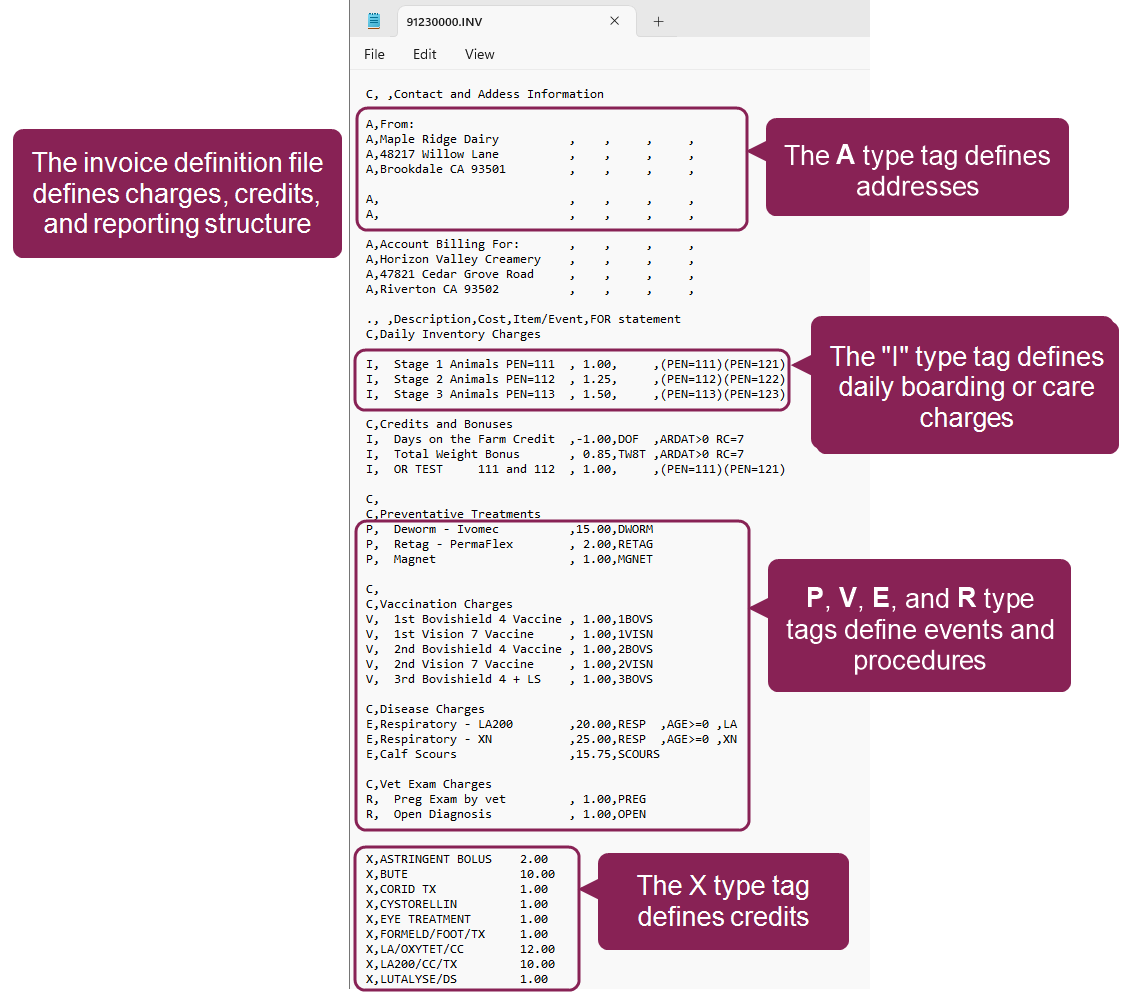
If the file does not exist, you'll be prompted to select a different file. The INVOICE\EDIT command will not automatically create a new, blank file. You must manually create a plain text file, save it as [HERDCODE].INV, and begin defining your charges before running the command.
Understanding the Structure of the Invoice Definition File
Every active line in your .INV file (lines not starting with a period . or a blank line) must follow a strict, seven-field, comma-separated structure, where the Type tag occupies the first field:
Type, Description, Cost/Item, Item/Event, FOR statement, Pattern, Owner[s]
The single-character Type tag is essential as it tells the program how to calculate the charge. Each available Type tag is explained below:
Type A (Address/Header): This category defines address and contact lines for the invoice header and typically contains customer or ranch contact information.
Type I (Inventory): This category defines daily boarding or care charges. Cost is multiplied by days in the billing period.
Type E, R, P, V, T (Events/Procedures): This category defines specific treatments, reproduction events, preventatives, or vaccinations. Cost is typically multiplied by the count of the event/item.
Type X (Credit): This category defines rebates for an animal death or loss. Cost is typically multiplied by the count of the event. A negative value is required in the Cost field.
Type C (Comment/Group): This category is used for adding section titles, subtitles, or blank lines for grouping charges.
Type M (Manual): This category defines extra charges like hauling or truck rental. It applies a manual charge set using the \M switch.
Type S (Supplemental): This category embeds a seperate, existing DC305 report into the invoice output. It is typically used for including an activity log or sorted report with the invoice.
Examples of Charge Lines
When building your invoice, you combine the Type tag with the next four fields—Description, Cost, Item/Event, and the FOR statement—to create the final billable line. The examples below show how the Type tag controls the logic of the charge:
-
Inventory Charges (I): These lines calculate costs based on the number of days the animal was present. For example, you can apply different daily rates based on which pen (PEN=) the animals are currently in, using the FOR statement for filtering.
For example, I, Stage 1 Animals PEN=111, 1.00, , PEN=111, charges $1.00 per day only to animals in Pen 111.
-
Event Charges (E): These lines calculate costs based on the number of times a specific event occurred. The same event (RESP) can be charged at different rates depending on the animal's age (AGE<3 vs AGE>2).
For example, E, Respiratory - first 60 days, 20.00, RESP, AGE<3, charges $20.00 for a RESP event only if the animal is under 60 days old.
-
Credit Charges (X): Lines beginning with X are used to define credit items, which deduct money from the total. When defining a credit, you must use a negative value in the Cost field.
For example, X, Death Loss Credit, -2.93, DOF, applies a $2.93 credit for every Death On Farm (DOF) event.
Customize Charges with Filtering and Patterns
You can control exactly which animals or events trigger a charge using the filtering fields:
-
FOR Statement (Field 5): Use any standard DC305 condition (e.g., AGED<240, LACT=1, DOF>150 STAY=0) in this field to apply the charge only to animals that meet that criteria.
For example, I, Daily Charge < 8 Mos, 2.81, , AGED<240, only charges animals younger than 240 days.
-
Pattern Matching (Field 6): For Event Charges (E, P, V, R, T), you can use this field to charge different prices for the same event based on the specific remark entered when the event was logged.
For example, you could charge $29.00 for a PNEU event with the remark DRAXN, and $17.00 for one with EXCE.
Run the INVOICE Command
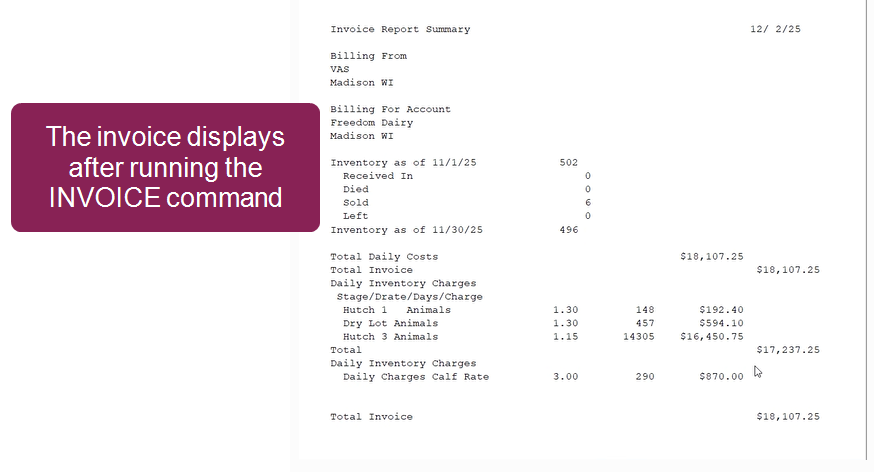
Running the INVOICE command evaluates all animal records within the billing period, determines which records satisfy the criteria in the invoice definition file, and generates the final invoice.
The dates of the report are determined by the switches you use:
-
No Switch (Default): The billing interval will run from the day following the prior invoice run's end date through yesterday. Typically used for continuing a standard billing cycle.
-
INVOICE\D: Prompts you to enter the start and end dates. Use this switch for re-running or manually adjusting a report.
-
INVOICE\DL: Sets the billing interval from the first day of the prior month through the last day of the prior month. Use this switch for standard monthly billing.
-
INVOICE\DT: Sets the billing interval to today's date as both the start and end date. Use this switch for single-day billing for services; inventory summaries are excluded.
Additionally, you can modify the output and the definition file used with these optional switches:
-
INVOICE\Xext: Uses a definition file with the extension .ext instead of the default .INV (for example, INVOICE\XCOW looks for [HERDCODE].COW).
-
INVOICE\Nnnnn: Sets the invoice number to nnnn for display only. Use \N without a number to be prompted for the number.
-
INVOICE\M: Activates manual charges defined separately.
Once you have refined your INVOICE command and chosen your preferred switches, it is common practice to save the entire string as a command abbreviation, such as BILL. This allows you to run your monthly billing quickly without re-typing the full syntax every time. For example, you can create a command abbreviation so that entering BILL automatically runs INVOICE\XIN1 (or whichever specific switches your herd requires).
After running the command, the invoice displays in the Report Preview window. Summary totals display at the beginning, followed by the itemized charges:
Add a Logo to Invoices
DC305 lets you add a company logo to the top of your invoices. To do so, run INVOICE\LOGO in the command line to open the Edit Invoice Logo window:
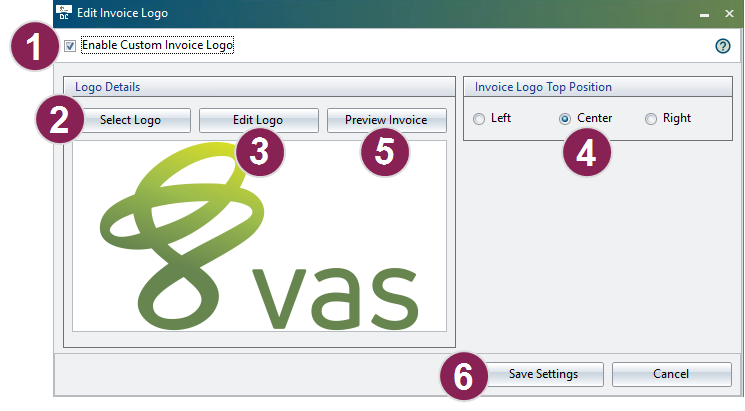
- Check the box for Enable Custom Invoice Logo.
- Click the Select Logo button to select an image file for your logo.
- Click the Edit Logo button to open an image editor. From here you can crop the logo image, adjust its colors, and more.
- Select a position for the logo at the top of your invoice: Left, Center, or Right.
- Click the Preview Invoice button to open a preview window and see how the logo appears in the invoice.
- When finished, click the Save Settings button.
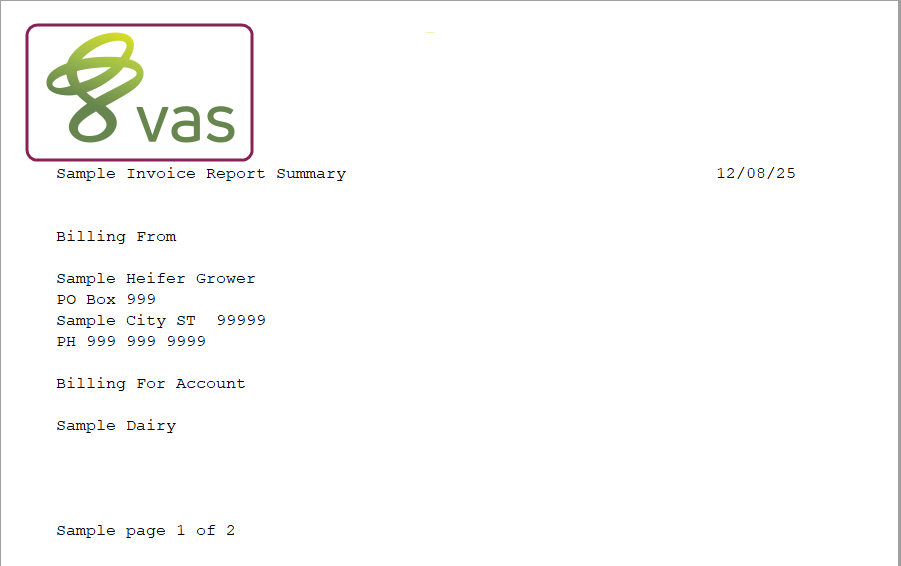
Now when you create an invoice, the logo displays at the top of the page:
Manually Confirm Data Prompts
If your invoice definition file contains lines that are incomplete or ambiguous, a pop-up window displays asking you to manually confirm or enter the required data for that specific charge line (i.e., the cost, item count, or condition). For instance, in the example shown below, the system has paused the invoice run and asks the user to manually confirm the number of Retag - PermaFlex events to charge for:
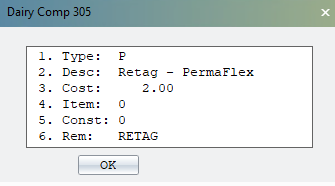
If a prompt appears, check the Type and Description displayed in the window (like Type: P and Desc: Retag - PermaFlex) to identify which line is causing the issue. You must provide the missing numerical value (usually a count or cost) for the invoice to proceed.
Clicking OK in the prompt applies the value only for the current report run; it does not save the change to the invoice definition file. To permanently eliminate the prompt, you must exit the command, use INVOICE\EDIT, and correct the ambiguous line in the file. If you do not want to apply the charge, enter 0.