Manage Hospital List Queues in PCC
Question: How do I queue and manage animals in a PCC hospital list?
Answer: Follow the steps below to queue and manage animals in a PCC hospital list:
- Enable the recommended PCC settings to make the hospital list easier to manage.
- Use Auto Queue so you can queue animals more quickly without manually entering each animal's position number.
- Learn how to Manage the Queue, so you can easily view, edit, or process the animals on your hospital list.
- Use Position View to conveniently review an animal's treatment information, add an event from a quick pick list, or move it to Done when you finish checking the animal.
 Update PCC Settings First
In PCC, open the Settings tab to update these settings:
- Show Hospital Form: Check the box next to see animals that are not included in the hospital list. For example, if an animal is added to the hospital list overnight, you may delay moving it to the hospital pen on PCC so you can track its original pen. If the illness is contagious, you can then check the other animals in the animal's original pen.
- Snooze Pen Validation: Enable Snooze Pen Validation so no unintentional pen moves are entered while you're managing the hospital list. This setting will remain enabled until you manually disable it or the next refresh occurs.
- Allow Hospital Position Grid: Select the way you want to queue animals:
- Not Used: Continue using the hospital list as-is.
- Auto Queue: PCC can assign the animal's position for you, so you don't have to manually assign a position to each animal. To do so, manually assign the first animal to the first position number. PCC then automatically assigns the remaining animals to position numbers in the order you tap them.
- Manual Queue: Manually assign each animal to a position number.
Enable Auto Queue
- Open a hospital list and navigate to the To Do list.
- Tap an animal ID to view its details.
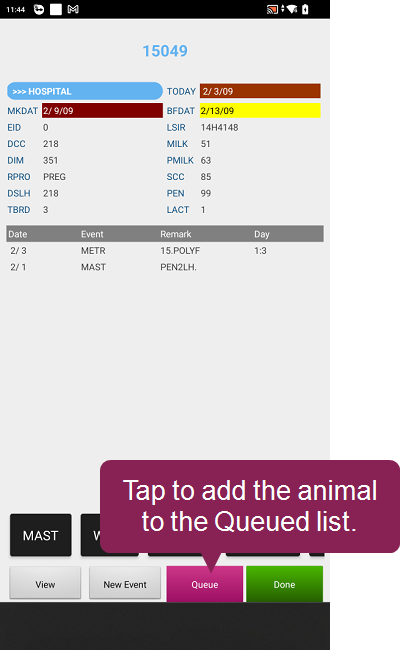
- Tap Queue at the bottom of the screen.
- Enter a position number for that animal. It should correspond to the physical position of the animal. If the animal is in the first stall or hutch, assign the animal to Position 1 on PCC.
- Tap the next animal. PCC automatically assigns the animal to the next position number in numerical order. For example, if you first tap Animal 1 and assign it to Position 1, you can then tap Animal 2 and PCC automatically assigns it to Position 2.
Enable Manual Queue
- Open a hospital worklist and navigate to the To Do list.
- Tap an animal ID to view its details:
- Tap Queue at the bottom of the screen.
- Enter a position number for that animal. It should correspond to the physical position of the animal. If the animal is in the first stall or hutch, assign the animal to Position 1 on PCC.
- Repeat the process for each animal that needs to be queued.
Manage the Queue
After you add animals to the queue, you can view, edit, or process them on the Queue list screen. Long press any icon to see what it does.
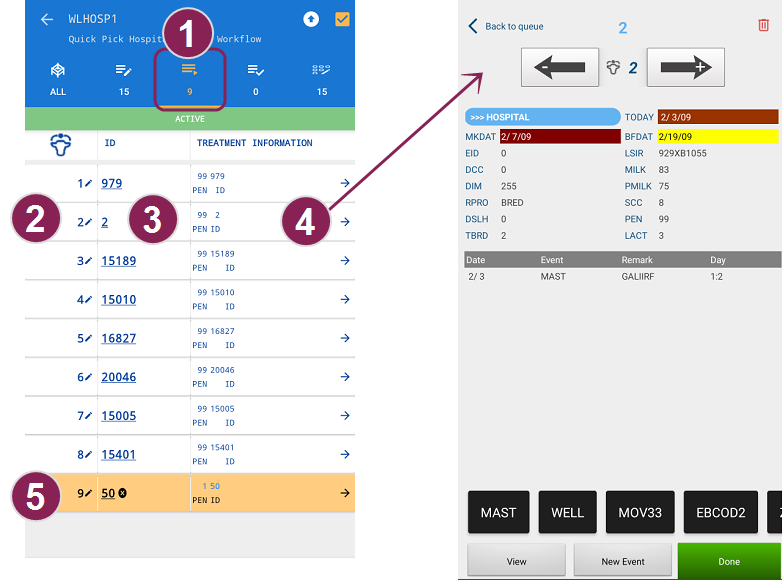
- Queue List: Tap the Queue button to view and manage the list of queued animals.
- Position Number: Tap any position number to modify it. You can only enter a position number that is not occupied by another animal.
- Animal ID: Tap any ID to view an animal's CowCard.
- Treatment Information: Tap on any treatment to open the Position View, where you can review or edit an animal's treatment information.
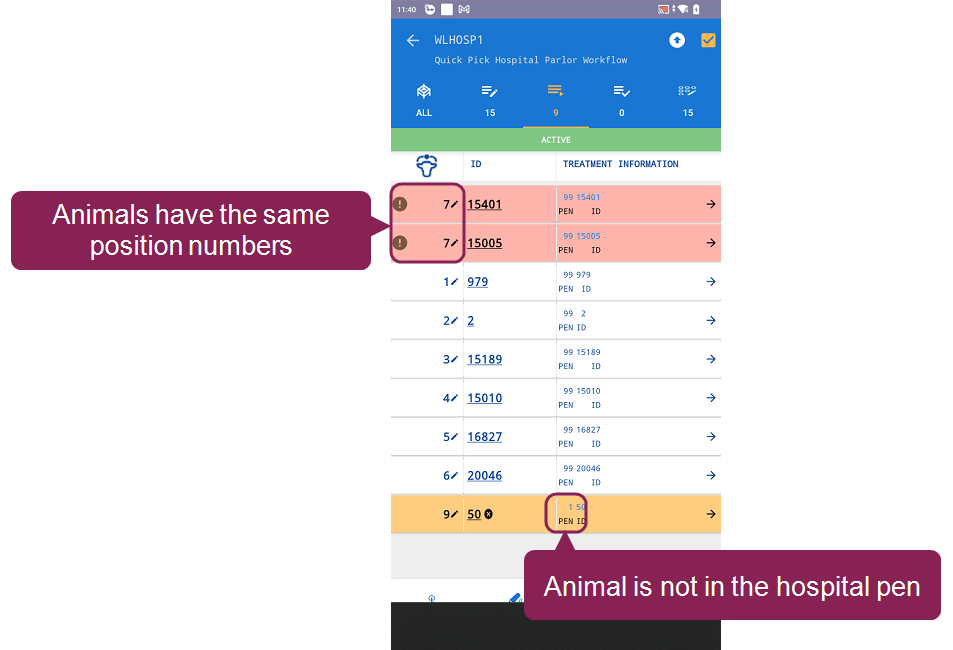
- Warnings: PCC will highlight queued animals that require review:
- Duplicate position numbers: Animals with the same position number will be listed at the top.
- Not in the hospital pen: Animals that are queued, but not included in the hospital list are highlighted.
The position number should correspond to the physical position of the animal. If the animal is in the first stall or hutch, assign the animal to Position 1.
Use Position View
When you're checking an animal on the hospital list, use Position View to manage the cow in front of you. You can review its treatment information, add an event from a quick pick list, or move it to the Done list. Position View mirrors what you see in real life: use the arrows at the top when you walk to the next animal in the queue. If you move to the animal to the left, tap the left arrow and PCC displays the treatment information for that animal:
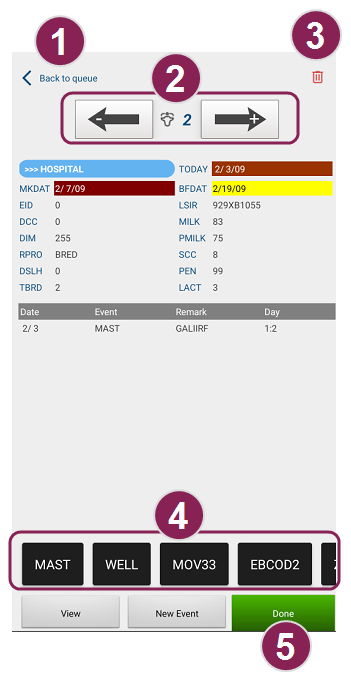
- Back to Queue: Return to the list of queued animals from the Position View.
- Navigation Arrows: Tap the left and right arrows at the top of the screen to view treatment details for other animals. If you queued and positioned the animals correctly, press the left arrow to view details for the animal on the left or tap the right arrow to view details for the animal on the right.
- Delete Icon: Tap to remove the animal from the list of queued animals and move it back to the To Do list.
- Quick Pick: Use quick pick options at the bottom of the screen to quickly initiate an event or expert batch command. You can modify these options in DairyComp. See Customize Quick Pick Lists in PCC to learn how.
- Mark as Done: Tap Done to move the animal from the Queued list to the Done list.