Configure Notification Settings
Receiving Connection Status notifications requires a two-step setup process:
-
First, create a contact list of phone numbers and email addresses.
-
Then, configure notification settings for each connection.
Expand the sections below to learn more:
 Create a Contact List
The contact list provides a global set of cell phone numbers and email addresses to be contacted when a connection goes down. You can be notified by text (i.e, cell phone), email, or both.
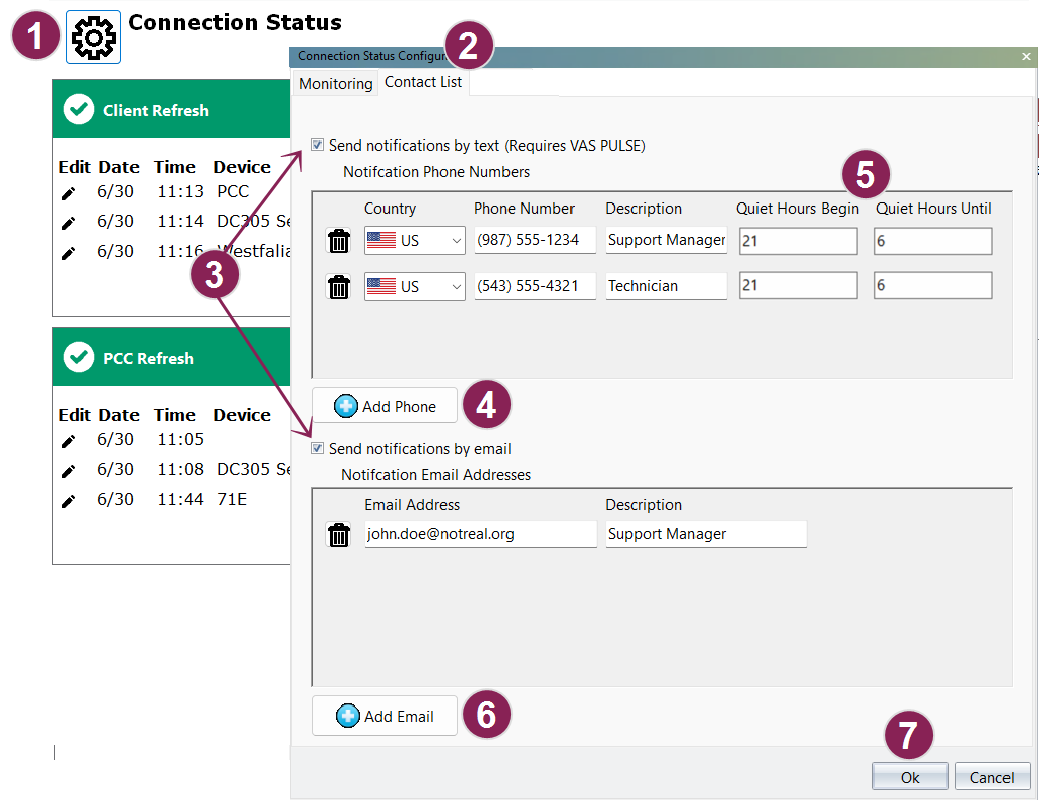
Follow the guidelines below to create a contact list:
- Click the Connection Status icon at the top left of the dashboard.
- Select the Contact List tab.
- Check the box to Send notifications by text or Send notifications by email or both.IMPORTANT: You must have VAS PULSE enabled in order to send notifications by text.NOTE: Email notifications are sent from vasbot@vas.com. To ensure you receive all alerts, you may need to check your spam folder or add this address to your list of approved senders.
- If sending notifications by text, click the Add Phone button, then enter the details for the cell phone number.
- (Optional) Use the Quiet Hours fields to enter a time period (using 24-hour time) in which text notifications are paused. Texts paused during quiet hours will be sent once the time period expires.
- If sending notifications by email, click the Add Email button, then enter the details for the email address.
- When finished, click the Ok button.
Set Notifications for Each Connection
Once you've created your contact list, you can apply those phone numbers and email addresses to your individual integration connections. For each connection, you can choose to send notifications to all the phone numbers and email addresses in your contact list, or select only specific ones, but you must select at least one phone number and/or email address for each connection in order to be notified of an outage.
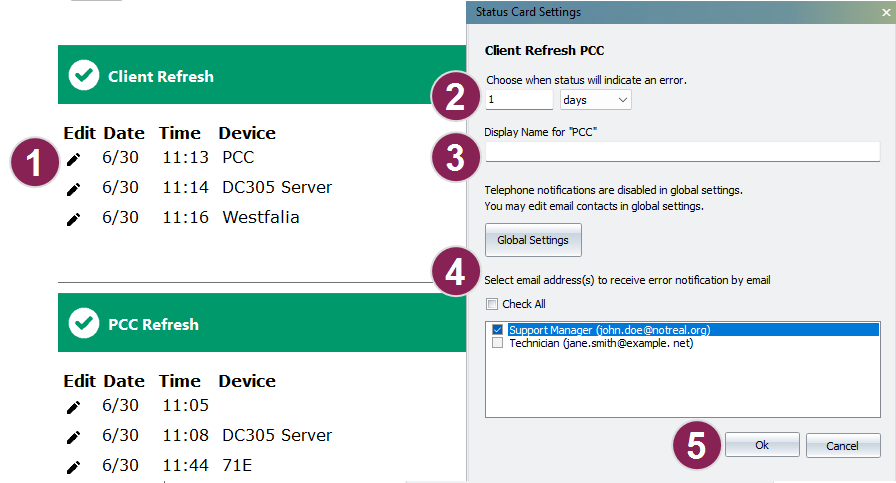
Follow the guidelines below to set notifications for individual connections:
- Click the edit icon next to the applicable connection. The Status Card Settings window is displayed.
- In the Choose when status will indicate an error field, enter the amount of time a connection must be down before a notification is sent.
- (Optional) To change the name of the connection as it shows on the dashboard and notifications, enter the new name in the Display Name for field.
- Select the phone numbers and email addresses to be notified when the connection is down.
- Select Check All to use all of the phone numbers/email addresses from your contact list, or select individual phone numbers/email addresses.
- If either phone or email notifications are disabled, click the Global Settings button to enable them.
- When finished, click the Ok button.