Semen Inventory (SEMINV)
You can use the SEMINV command to manage your semen inventory. You can add or subtract straws, update or delete sire information, and define or print a semen inventory report. You can also use the command to import and update various files of semen prices and semen inventory.
The command is primarily used for updating the sire file during its creation. When you enter the SEMINV command, the system looks for the semen inventory file, which is stored in a separate file (usually named SEMFILE1.DAT). If you have a semen inventory file, the system will display a blank semen file when the SEMINV command is entered. If there are no semen files found, the system will create a new file when the SEMINV command is entered.
When you enter the SEMINV command, DC305 displays a pop-up window with additional options.
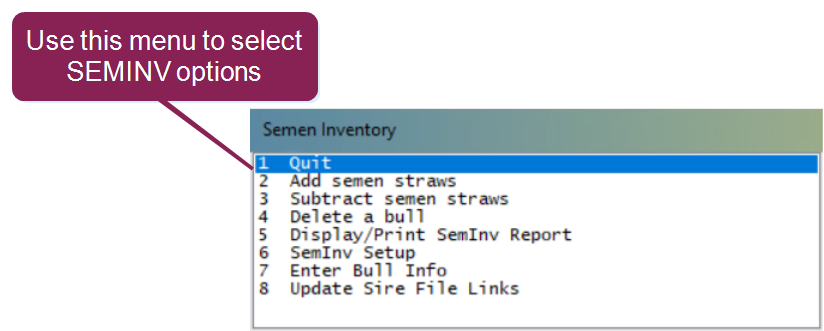
Expand the topics below to learn more:
 Add or Subtract Semen Straws
Use these SEMINV options to add or remove semen from the semen inventory. To add or remove semen straws, select the bull ID or press F2 to pick the bull from the semen inventory. Enter the updated number of straws.
If the bull is not on the internal sire list, the system will ask you to confirm the accuracy of the entry.
You can also use this option to remove straws from the inventory due to loss, breakage, or sale. The system will ask you if the sire should remain in your inventory if the number of straws becomes zero.
Delete A Bull
This option allows you to delete a bull from semen inventory. This feature can be used when straws are depleted from a bull, or if a bull is no longer active. We recommend utilizing this option periodically to ensure a current and accurate inventory.
Display/Print Semen Inventory Report
You can select the Display/Print SEMINV Report option from the SEMINV options to view or print the semen inventory, including the total number of bulls in the inventory. You can also configure a command to automatically print the inventory from the menu if you use the switch (SEMINV).
Other SEMINV command switches are:
- \2 - Double space.
- \I - Print semen inventory.
- \U - Underline to end of line.
- \E - Eject page between sort groups.
Semen Inventory Setup
SEMINV is not designed to be a command-driven, flexible report writer like DairyComp. However, you can define which items are on the report, and how the report should be sorted. The settings are table-driven as opposed to command-driven.
Follow the guidelines below for more information on creating semen items:
- In the start-up semen inventory table, there are about twenty predefined items with availability for you to define ten additional items. The items appearing in the report will not necessarily be the same ones in the table because the report is currently limited to sixteen items.
- Some items can be “linked” to the external file containing bull production and type proofs. These items must be defined in the table as Sire File Linked Items. Use the option Update Sire File Links on the SEMINV menu to enter those items into a semen file.
- The file DCSIRES.DAT contains the USDA and breed proofs for the current AI Active Sire List. For the sire link to function correctly, bulls in the semen inventory must be identified with either a registration number or a NAAB code. If the sire’s name (such as BLACKSTAR) is not a unique name, the link option may not load the bull. VAS will distribute a new file on our web page once each proof is run.
- Upon running SEMINV initially, it will create a default semen inventory report. VAS recommends redefining this report immediately to select items that satisfy your needs.
- Items can be defined/added to the table if needed. Item types are similar to current DairyComp item types, except for several designed to handle type proofs.
Enter Bull Info and Update Sire File Links
To enter information such as tank numbers, canister numbers, etc., choose Enter Bull Info. Select the item(s) you wish to enter. To remove an item, select the item and press the Escape (ESC) key on your keyboard.
Semen Inventory Results after a BRED Command
Whenever a sire in the inventory is used for breeding, one unit is subtracted from the inventory. In the case of re-breedings, DC305 will not subtract two units because the re-breeding is considered a single breeding event.
The switch on the BRED command is used for splitting straws. If used, the program asks you whether you want the straw deducted or not. If the straw is split in half, you would use BRED for the second breeding.