Visualize Historical Measurements with EPLOT
Question: How can I analyze the historical trend of measurements like Body Condition Score (BCS), Weight, or Height for individual animals or groups in DC305?
Answer: Use the EPLOT command to display the historical progression of specific numeric measurements that have been recorded in the Remark field of events.
EPLOT provides visual analysis for three types of animal measurements over time:
-
Body Condition Score
-
Weights
-
Heights
The historical data for these plots is typically sourced from the BCS (Body Condition Score) Event and the MEASURE event. The specific event codes used for each measurement are defined in the EPLOT Settings (EPLOT\M).
 Why Track Body Condition Score?
Body condition scoring provides an objective estimate of an animal’s nutritional status and is linked to health and breeding success. Poor body condition scoring during transition periods increases disease risk and reduces reproductive performance. EPLOT helps visualize these trends over time.
EPLOT differs from standard graphing commands because it plots the numeric value found in the Remark field of a specified event (for example, the body condition score recorded in the BCS event). Don't confuse EPLOT with the GRAPH or EGRAPH functions:
-
GRAPH plots current numeric item values (for example, MILK).
-
EGRAPH plots the frequency of events over time (for example, MAST count).
-
EPLOT plots historical measurements saved in the Remark field over time.
Configure EPLOT Settings
Before running the EPLOT command, you must configure DC305 to link the correct events to the measurements you wish to plot. This configuration setup will then apply to all three measurement types (i.e., body condition score, height, weight).
To open the EPLOT Settings window, enter EPLOT\M in the command line.
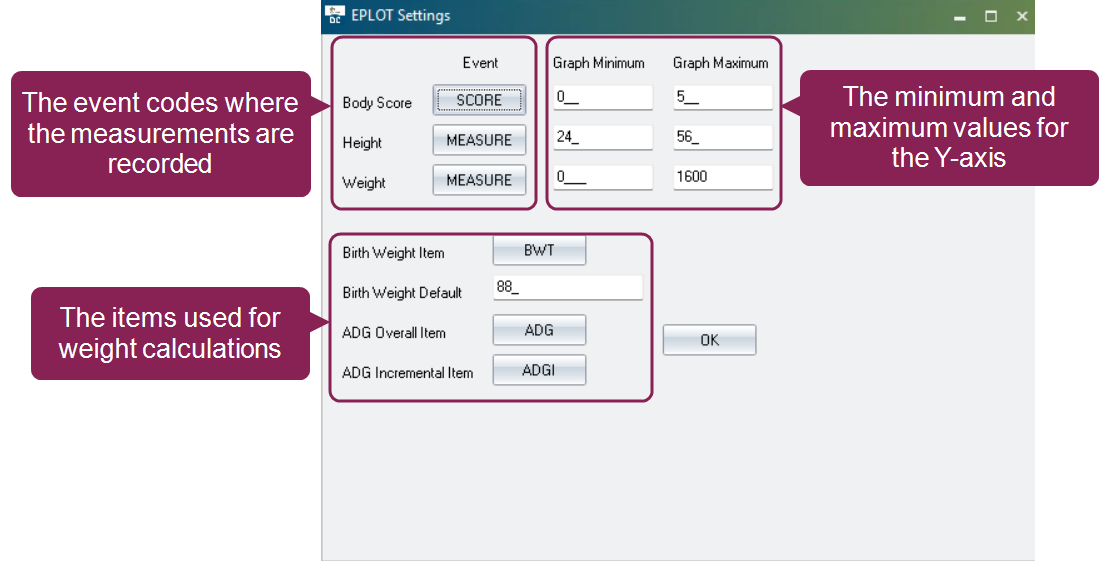
In the window, enter the settings as instructed below, then click OK to save them:
-
Event: Defines the specific event codes where the measurements are recorded (for example SCORE for body condition score, MEASURE for height and weight). This is crucial for DC305 to find the historical data.
-
Graph Range (Min/Max): Sets the minimum and maximum values for the y-axis. This standardizes the appearance of all future graphs of that type (for example, a BCS range of 0 to 5).
-
Weight/ADG Specific settings: Defines the item names (BWT, ADG, ADGI) used for Average Daily Gain (ADG) calculations. Applies only to weight analysis.
-
Birth Weight Item: The DC305 item name (typically BWT) used to record an animal's actual birth weight. If this item is populated, it's used as the starting point for ADG calculations. Use item type 1 or 17 for Birth Weight Item to record the integer value.
-
Birth Weight Default: The value DC305 should assume as a standard birth weight if the animal's Birth Weight Item is empty.
-
ADG Overall Item: The DC305 item name (typically ADG) where the calculated overall ADG is stored when using the \S switch. Overall ADG is calculated from the animal's birth weight to its most recent recorded weight. Use item type 22 for ADG Overall Item, which provides a two-decimal place value suitable for growth rate.
-
ADG Incremental Item: The DC305 item name (typically ADGI) where the calculated incremental ADG is stored when using the \S switch. Incremental ADG is calculated between the last two recorded weight events. Use item type 22 for ADG Incremental Item, which provides a two-decimal place value suitable for growth rate.
-
Run EPLOT from the Selection Window
You can run the EPLOT function using a selection window to choose your analysis parameters (i.e., the type of graph and the animal ID), or you can add these parameters to the EPLOT command directly in the command line.
To run EPLOT from the selection window:
-
In the command line, enter EPLOT.
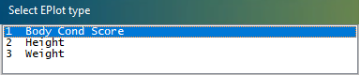
A selection window displays asking you to choose the type of graph to create.
-
Choose an EPLOT type from the window.
A window displays asking you to input the ID for the animal you want to analyze.

-
Enter the ID for the animal you want to analyze.
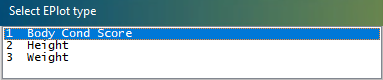

Once you've chosen the plot type and animal ID, the individual animal plot displays.
Individual Animal Plot
The individual animal graph is the default output when running EPLOT for a specific ID. It provides a visual history of that animal’s measurement trend over time.
The x-axis (time axis) in EPLOT is fixed and cannot be changed, as it is determined by the biological relevance of the measurement:
-
Body Condition Score: Always plots against Days in Milk (DIM) to analyze condition loss/gain during lactation.
-
Weight or Height: Always plots against Age (in Days or Months) to analyze growth rates and heifer development.
Below is an example of an EPLOT for Weight for animal ID 2201.

The plot consists of the following key components:
- Data Panel: The yellow panel on the left of the plot displays the dates and exact measurements for the plot data.
- y-axis: Displays the measurement value (for example, Score for BCS, Height, or Weight). The range is set in the EPLOT Settings (EPLOT\M).
- x-axis: Displays the fixed time interval based on the measurement plotted (DIM for BCS, Age for Weight/Height).
- Data Points: Each point on the graph represents a single recorded measurement (from the event remark). To investigate the source of a specific data point, double-click the applicable point on the graph. DC305 automatically switches to the animal's CowCard, which displays the detailed record view. You can then check the event history to see the original date and value entered.
Run EPLOT from the Command Line
The command line is the fastest way to run and customize an EPLOT analysis. It is also the required method for generating group (i.e., composite) plots. The basic structure for running EPLOT from the command line is: EPLOT MEASUREMENT SWITCH] FOR [CONDITION] \[OTHER SWITCHES]
Measurement Selectors
To run an individual animal plot from the command line, use one of the measurement selector switches and specify an animal ID. The measurement selector switches include:
-
\C for body condition score
-
\H for height
-
\W for weight
For example, to view a weight plot for an animal with ID 1234, run: EPLOT \W FOR ID=1234
How to Run a Group Plot from the Command Line
The group (composite) plot generates a visual representation of the averaged measurement trend for all animals that meet a specified filter condition (for example, a specific lactation or pen). This plot is used primarily for benchmarking and herd-level trend analysis, not for individual animal details.
To run a group plot, run the EPLOT command directly in the command line and specify a population filter using a FOR statement (which tells DC305 to select multiple animals).
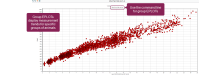
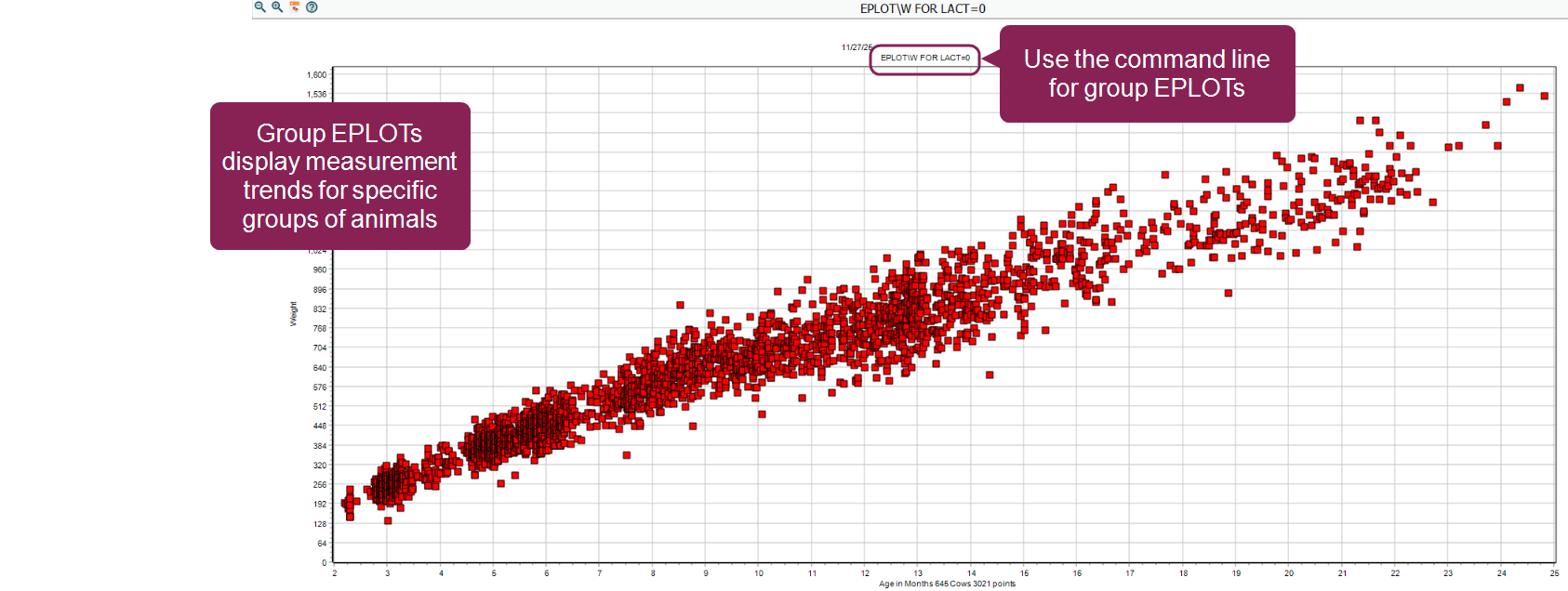
For example, for heifer weight benchmarking, run EPLOT \W FOR LACT=0
-
\W selects the Weight measurement type.
-
FOR LACT=0 filters the population to only include heifers (i.e., lactation 0).
Or, to view a first-lactation BCS trend, run EPLOT \C FOR LACT=1
-
\B selects the Body Condition Score measurement type.
-
FOR LACT=1 filters the population to include only first-lactation animals.
The resulting plot displays the collective, averaged measurement trend for all animals that meet a specified filter condition. This group plot is used primarily for benchmarking and herd-level trend analysis, not for individual animal detail. The output shows the averaged trend over the fixed x-axis (Age for Weight/Height, DIM for BCS). This trend may be displayed as a smoothed line or as a series of averaged data points, depending on the data density.
Common Command Line Switches
You can combine multiple switches at the end of a command without any spaces (for example, \WAG).
-
\A (ADG Average): Calculates and displays the Weight plot output as the Average Daily Gain (ADG) trend over time, instead of raw weight values. Applies only to Weight (\W) analysis. For example: EPLOT \WA FOR LACT=0
-
\C (Body Condition Score): Selects Body Condition Score (BCS) analysis. For example: EPLOT \C FOR ID=1234
-
\D# (Date Select): Limits the analysis to include only data points within the last # days. For example: EPLOT \W FOR LACT=0 \D365
-
\F (Filein Scale Data): Used to import height and weight data from scales. Contact support for help in setting up the import.
-
\G (Global Standards): Adds the low and high standards lines to the graph. Must be used with Height (\H) or Weight (\W) analysis. For example: EPLOT \WG FOR LACT=0
-
\H (Height): Selects Height analysis. For example: EPLOT \H FOR ID=5555
-
\M (EPLOT Settings): Opens the EPLOT Settings configuration window. For example: EPLOT \M
-
\S (Store ADG Items): Calculates the Overall ADG (ADG) and Incremental ADG (ADGI) and saves those values into the animal's item record. This command runs independently of the plot and should be set up in ALTER\6 to run daily.
-
\T (Tall Mode): Displays the graph output in Tall Mode.
-
\W (Weight): Selects Weight analysis. For example: EPLOT \W FOR ID=9876
-
\X (Exchange): Exchanges (fixes) Height and Weight values that were recorded in the wrong order.
-
\X# (X-Axis Max Value): Sets the maximum value for the x-axis (Age or DIM). Note: This switch is also used with the Exchange functionality above. For example: EPLOT \W FOR LACT=0 \X400
-
\Y# (Y-Axis Max Value): Sets the maximum value for the y-axis (Measurement Value). For example: EPLOT \W FOR LACT=0 \Y200