ALTER10 : CowCard Definition
The ALTER10 : CowCard Definition command in DairyComp lets you customize the layout of the CowCard. The CowCard is the heart of an animal's record in DairyComp, displaying vital details such as birth date, sire identification, and lactation history. Customizing the layout of the CowCard ensures the most important data for your dairy is always front and center.
To open the CowCard Definition window, enter ALTER\10 in the command line or type ALTER and choose [A] CowCard Pages from the menu.
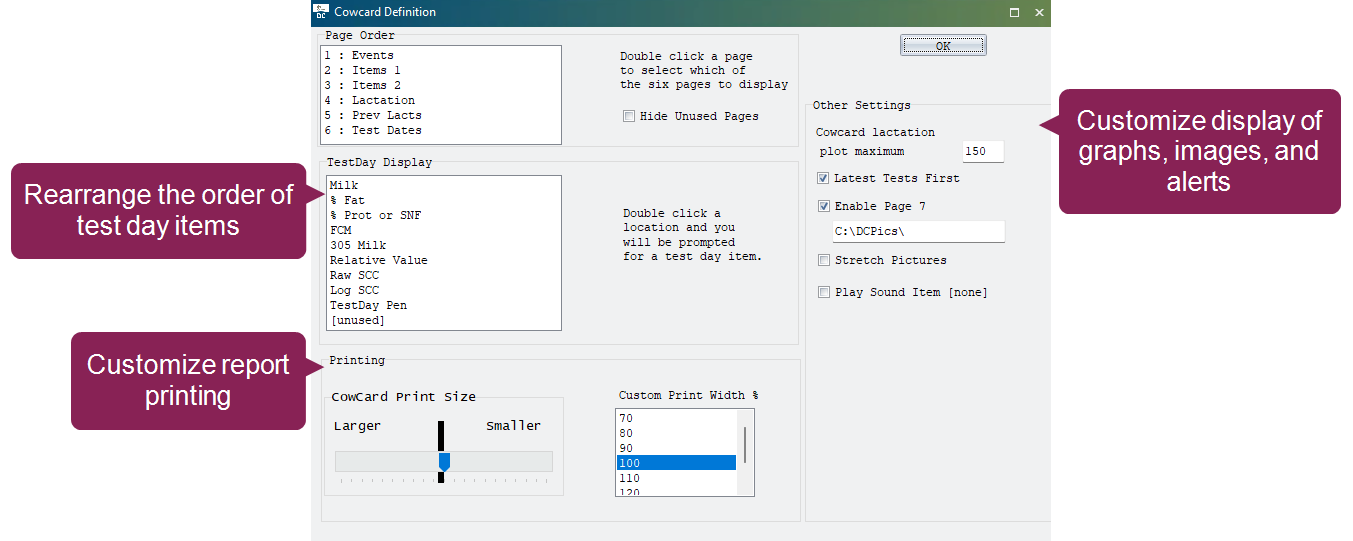
 Select Testday Display Format
The Testday Display section lets you rearrange the order of the columns containing the test day items on the Test Dates tab of the CowCard. You can also choose not to display certain columns.
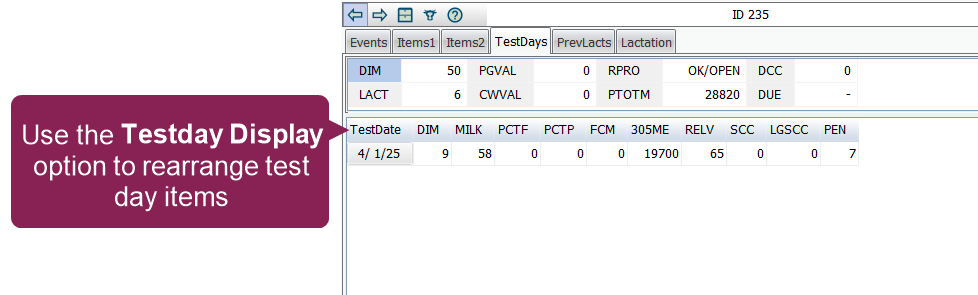
To customize test day item columns:
-
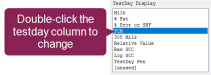
Double-click an item in the list (such as Milk, % Fat, or SCC):
-
Double-click a different test day item to display in that position:
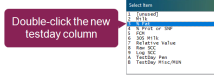
The new column now displays in the chosen position on the CowCard.
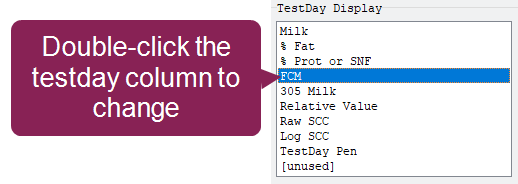
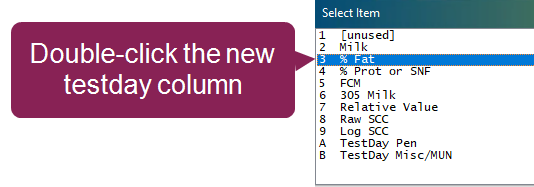
You can also choose the unused option to leave column slots empty and make the grid easier to read.
Configure Visuals and Alerts
These options manage the visual behavior of graphs, images, and alerts on the CowCard:
-
CowCard Lactation Plot Maximum: This sets the manual scale for the Y-axis (Milk) on the lactation graph, which is typically found on tab 6. If the production lines for high-yielding animals extend beyond the top of the chart, increase this value (for example, to 150 or 200) to ensure the entire lactation curve remains visible.
-
Latest Tests First: If checked, the most recent test day results appear at the top of the list.
-
Enable Page 7 (Pictures): Check this box to add a dedicated tab for animal photos, then enter the folder location where your animal images are stored (for example, C:\DCPics\).
-
Stretch Pictures: If checked, DairyComp forces the image to fill the entire tab area.
-
Play Sound Item: Allows you to pick a specific data item that triggers an audible alert when the CowCard opens.
Configure Printing Options
Use these settings to ensure physical copies of CowCards fit your paper reports correctly:
-
CowCard Print Size: Use the slider to scale the entire card larger or smaller.
-
Custom Print Width %: Adjust the width percentage if the CowCard is being cut off by your printer's margins.